Prompt Manager
What this is for, in one sentence: Prompt Manager is where you choose and manage the exact questions AI gets judged on — everything else in Zicy is built from the answers to these questions.
Before you read this: if you haven’t yet, read How to write tracked prompts that actually work (GS-02) first. That guide covers what to write; this article covers how the screen works — tabs, statuses, tags, and quotas.
We continue with Sarah at MenuPilot, now running 13 active prompts.
The three tabs
Section titled “The three tabs”Prompt Manager is split into three tabs along the top:
- Tracked Prompt — the live view: every prompt’s status on every AI platform. Come here to check whether tracking is running.
- Manage Prompt — the list view: add, edit, tag, pause, or delete prompts. Come here to change things.
- Manage Tags — your Tag Library: create and organize the labels you attach to prompts.
Reading the per-engine statuses (Tracked Prompt tab)
Section titled “Reading the per-engine statuses (Tracked Prompt tab)”Each prompt is tracked on five platforms independently — ChatGPT, Gemini, Perplexity, Google AI Mode, and Google AI Overviews — so each prompt row shows five little status chips. The status you see here is the same status Zicy shows everywhere else in the app — there’s one shared source of truth for whether a prompt is tracking, so this screen and the rest of Zicy never disagree about what’s running.
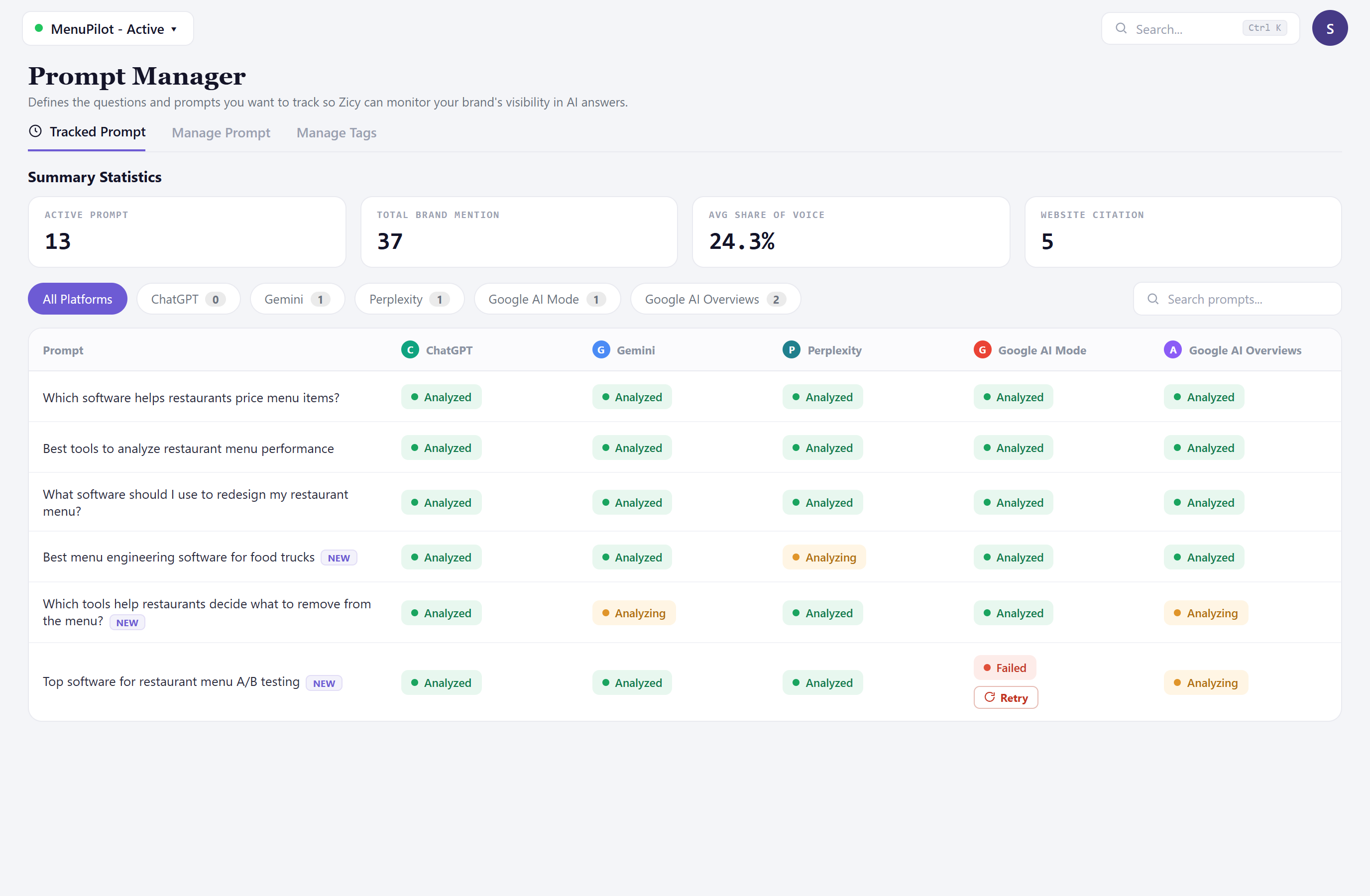
What each status means, in plain English:
- Analyzed / completed — this engine’s answer has been collected and measured. The normal state.
- Analyzing — Zicy is currently running this question on this engine. Normal for new prompts and during the regular refresh. When you’ve just started tracking a prompt, each engine reports its own progress, so the engines that have finished are already readable while the slower ones catch up — you don’t have to wait for the whole row to complete before seeing results.
- Failed + Retry — this one engine’s run didn’t complete. It affects only that engine on that prompt — the other four keep working. Click Retry on the chip. If several engines have failed across your prompt set, there’s a bulk-retry so you can re-run all the failed ones at once instead of clicking chip by chip. If the same chip fails repeatedly across days, contact support with the prompt text.
Good to know: a couple of Analyzing or even Failed chips on a big prompt set is normal operations, not a broken account. Worry only if everything stays red for days.
Generating prompts (the smart generator)
Section titled “Generating prompts (the smart generator)”The Generate More Prompt button opens the smart generator, which writes buyer-style questions from your brand profile.
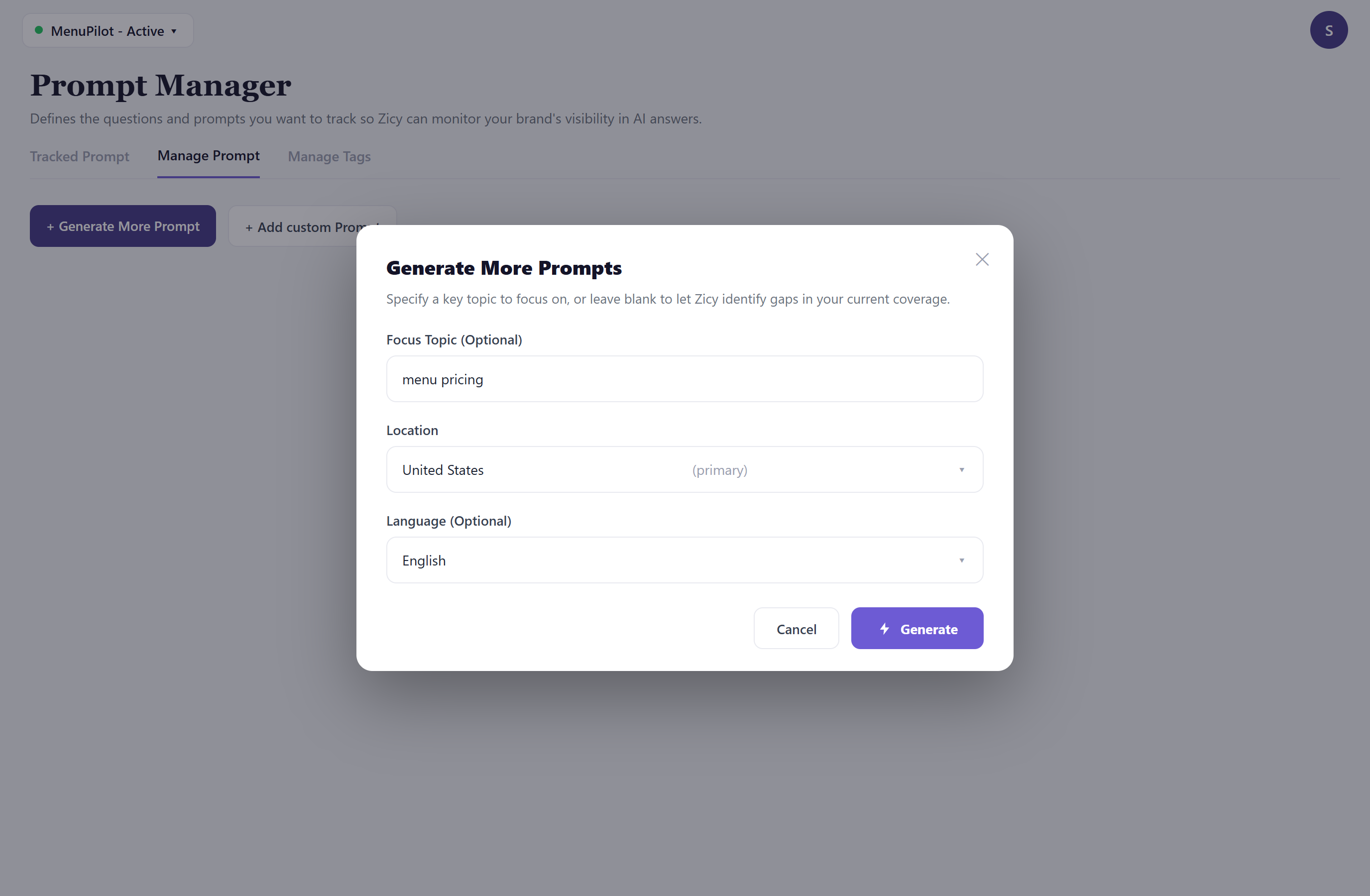
The three optional fields are worth using:
- Focus Topic — steer the batch toward one theme (e.g., “menu pricing”) instead of general category questions. Great for filling a specific blind spot.
- Location — generates questions for a specific market. Each generated prompt shows the market/location it was actually resolved to, so you can confirm Zicy read your intent correctly, and it’s tagged with that market automatically.
- Language (Optional) — generates the questions in another language. Helper text under the field explains exactly what this changes: it affects the language the questions are written in for tracking non-English markets, not which country’s results are measured.
Generation runs with a staged progress indicator that shows how far along it is plus elapsed time and an estimated time remaining, so you’re never staring at a blank spinner wondering if it stalled. Generated prompts arrive as drafts — review them against the GS-02 checklist, remove any weak ones, then activate. If a prompt’s tags look like they contradict what it’s actually about (say, a location tag that doesn’t match the market it was generated for), Zicy flags it so you can fix the tag before activating.
Custom prompts (the “Add Custom Prompt” button) are covered with a screenshot in GS-02 — one question per line, live counter, then Add. Custom prompts go through the same review-and-confirm step as generated ones: you check them and explicitly confirm before they go Active, so nothing starts tracking (and spending quota) until you’ve eyeballed it. If a custom prompt contains your own brand name, Zicy shows an inline warning and asks you to acknowledge it before continuing — naming yourself in the question skews the result, and this makes sure it’s a deliberate choice, not an accident.
Tags (Manage Tags tab)
Section titled “Tags (Manage Tags tab)”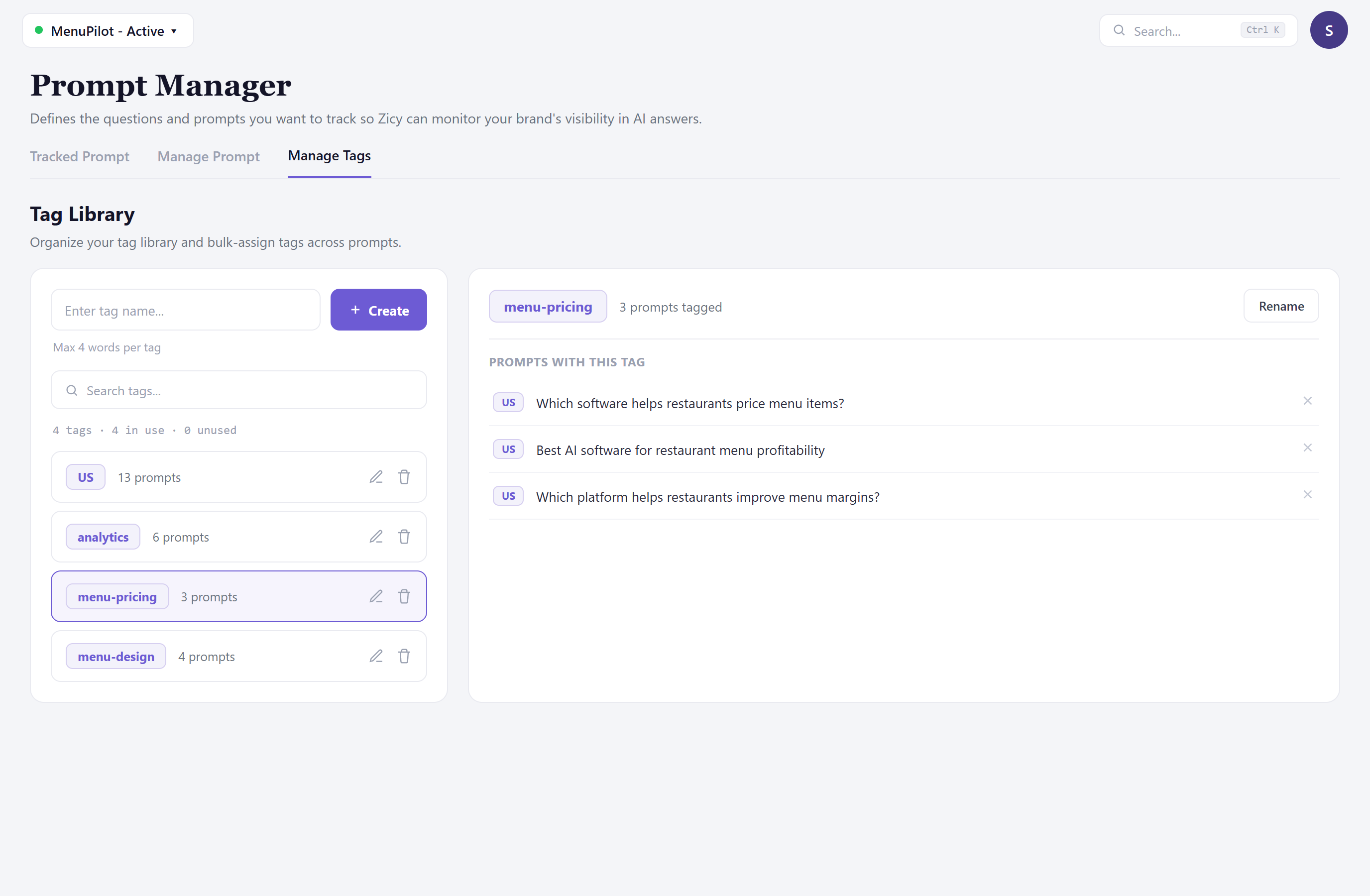
The Tag Library shows every tag and how many prompts carry it. On a brand-new account the library isn’t a blank dead end: you can apply a one-click starter taxonomy to get a sensible set of location and topic tags in place immediately, then adjust from there. You can also attach tags to a prompt right when you create it, rather than having to go back and tag everything afterwards — and every row on the Manage Prompt list has an “+ Add” control for tagging later.
Why bother? One reason, and it’s a big one: tags are the filter for everything downstream — the dashboard, Key Topics, sentiment, and exports can all be sliced by tag. The tagging system suggested in GS-02 (one location tag + one topic tag per prompt, from a list of 3–6 topics) is all you need.
Understanding the quota panels
Section titled “Understanding the quota panels”The three counters at the top of the screen meter different things — and they use the same plain vocabulary you’ll see everywhere else in Zicy, so a “slot” here means a slot on your dashboard too. Here’s the decoder:
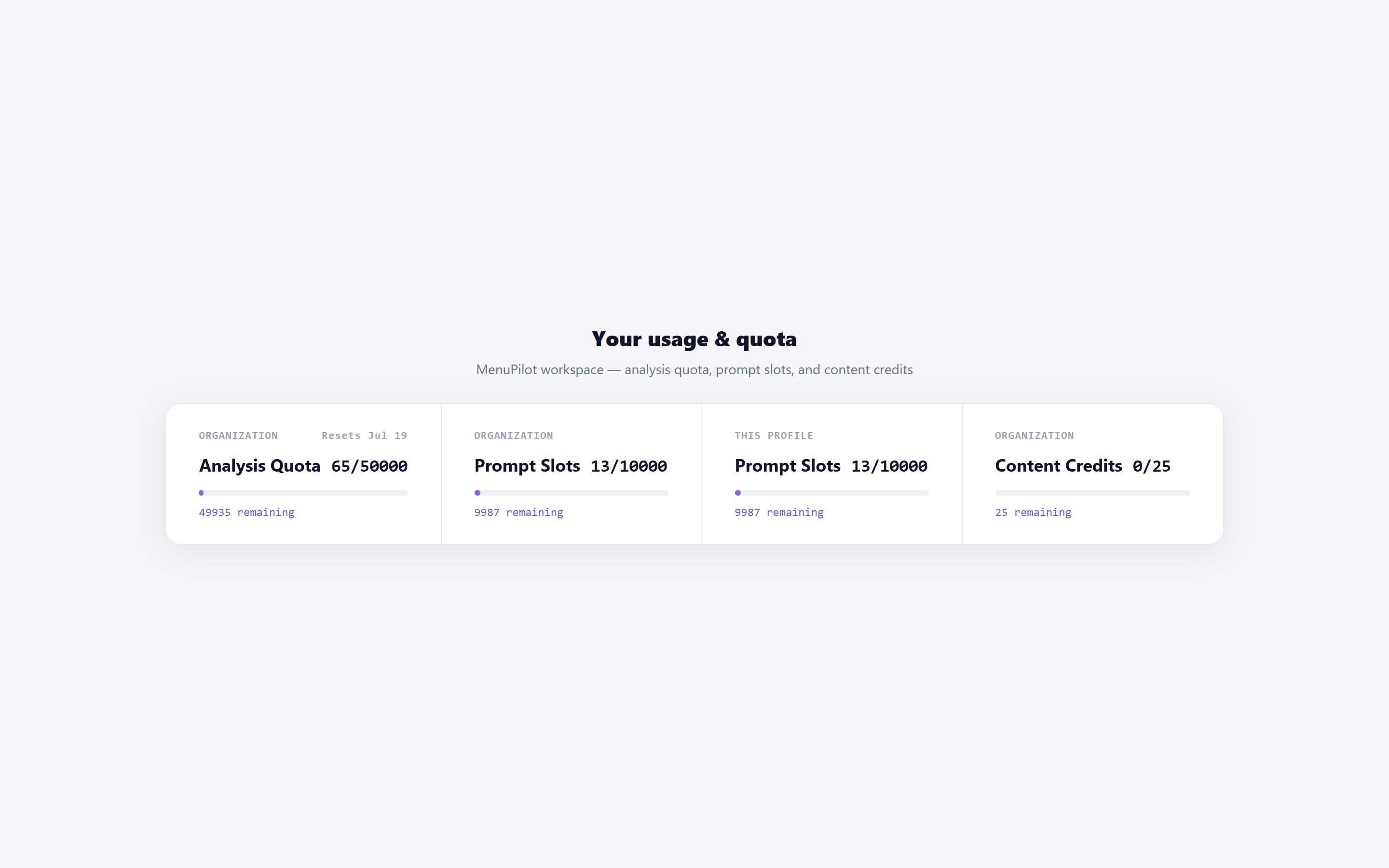
- Prompt Slots — how many prompts your plan lets you track in total. Sarah’s “13/10000” = 13 slots used. Deleting or pausing a prompt frees its slot.
- Analysis Quota — the number of individual AI-answer analyses included per period. The math to remember: one prompt = five analyses per run (one per engine). Sarah’s 13 prompts consumed 65 analyses on their first run — that’s why the counter moves faster than the prompt count. It resets on the date shown.
- Content Credits — nothing to do with prompts; this is the currency for the Content Generator (see the Action Center article, M-13).
Whenever you activate prompts, a confirmation states the exact cost before anything is spent — you’ll see the precise number of analyses it will use and can back out. You’ll never be charged quota silently.
Pausing and deleting prompts
Section titled “Pausing and deleting prompts”On the Manage Prompt tab, each row has controls to pause, edit, or delete:
- Pause keeps the prompt and its history but stops the scheduled runs — the right choice for a seasonal question or when conserving quota.
- Delete removes the prompt and its history. Because that can’t be undone, deleting asks you to type the prompt to confirm rather than accepting a single click. If in doubt, pause instead; you can always delete later, but you can’t un-delete.
Common questions
Section titled “Common questions”How long until a new prompt shows results? The first analysis usually completes within about 30 minutes, and each engine reports as it finishes so you can read the early ones straight away. The dashboard then consolidates results on its regular daily cycle — and its Performance Trends panel lets you view them daily, weekly, or monthly, so you can watch movement at whatever grain suits you. See Step 4 of GS-01 for what to expect while you wait.
The Summary Statistics here look different from my dashboard — which is right? They shouldn’t differ anymore: the Summary Statistics on this screen are drawn from the same source and date range as the dashboard’s KPIs, so the two now match. The AI Visibility Report (the dashboard) is still your authoritative scoreboard; treat these as the same numbers seen from Prompt Manager.
Can I change a prompt’s wording? Editing a prompt effectively starts a new measurement — the old wording’s history won’t blend with the new one. For a meaningful trend, keep wording stable; add a new prompt instead of rewording an old one.
Do paused prompts cost quota? No — paused prompts consume no analyses. Their slot stays reserved until deleted.
What to do next
Section titled “What to do next”- Write better questions: How to write tracked prompts that actually work (GS-02).
- See what a prompt’s answers actually look like: Per-Prompt Results (M-03).
- Read the scoreboard those answers produce: AI Visibility Dashboard (M-04).