Team, Settings & White Label
What this is for, in one sentence: Team and White Label settings are where your agency becomes the product your clients see — who’s on the team, which clients each person can touch, and whose brand is on every dashboard, invite email, and exported report.
When to come here:
- Onboarding a new analyst or account manager — invite, role, and client scoping in one pass
- Before your first client-facing export, to set the branding that every report will render under
- When someone leaves: revoking access is a single action, and the Invitations section keeps the record
Marcus Tan runs eight client workspaces through NorthStar Digital, and two things keep that defensible: nobody on his team sees a client they’re not assigned to, and nothing a client receives says anything but NorthStar. Both are configured here — once — and then confirmed by the rest of the product every time they matter.
The team roster
Section titled “The team roster”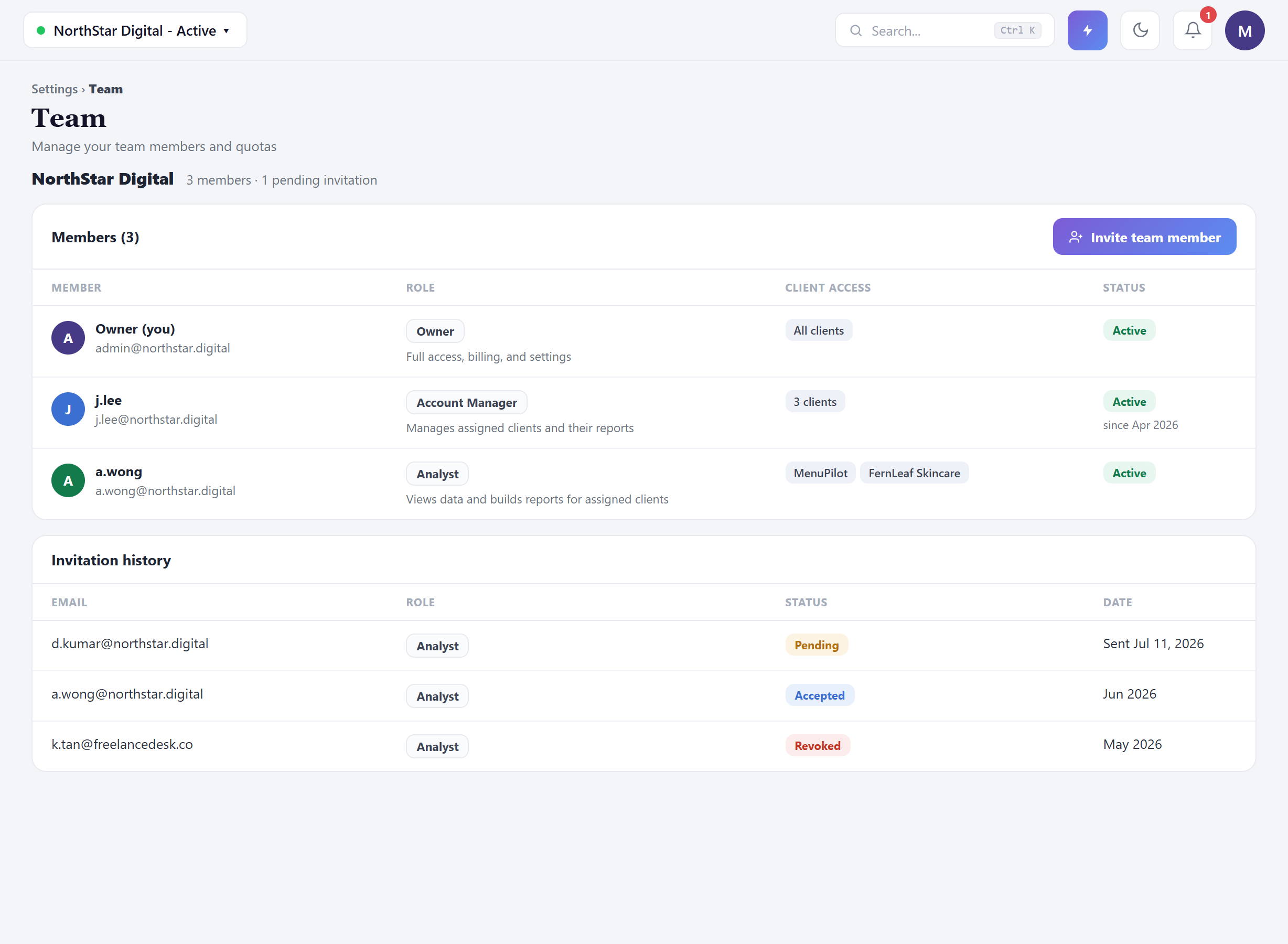 Reach it from the sidebar: click Settings to expand it, then choose Team.
Within Team, three sub-tabs split the page: Members (the roster below), Quotas, and Permissions.
One table answers who’s on the team, what role they hold, when they joined, and which profiles they can access. Three roles do the work — Owner (full access, billing, and settings), Account Manager (manages assigned clients and their reports), and Analyst (views data and builds reports for assigned clients). Profile access is explicit per member: an Account Manager might carry 3 profiles, an Analyst exactly the two they work on, and the Owner sees all profiles.
Below the roster, an Invitations section keeps the audit trail: email, role, status, and expiry, with each invite shown as Pending, Accepted, or Revoked. That revoked entry isn’t clutter; it’s your record that a departed contractor’s access was actually cut, with an expiry date you can point to.
Scope access like client confidentiality depends on it — because it does. If two of your clients compete, the analyst on one shouldn’t be browsing the other’s dashboard. Assign the minimum client set per person and let the roster be the proof of it.
Inviting someone — and what the form won’t let you do
Section titled “Inviting someone — and what the form won’t let you do”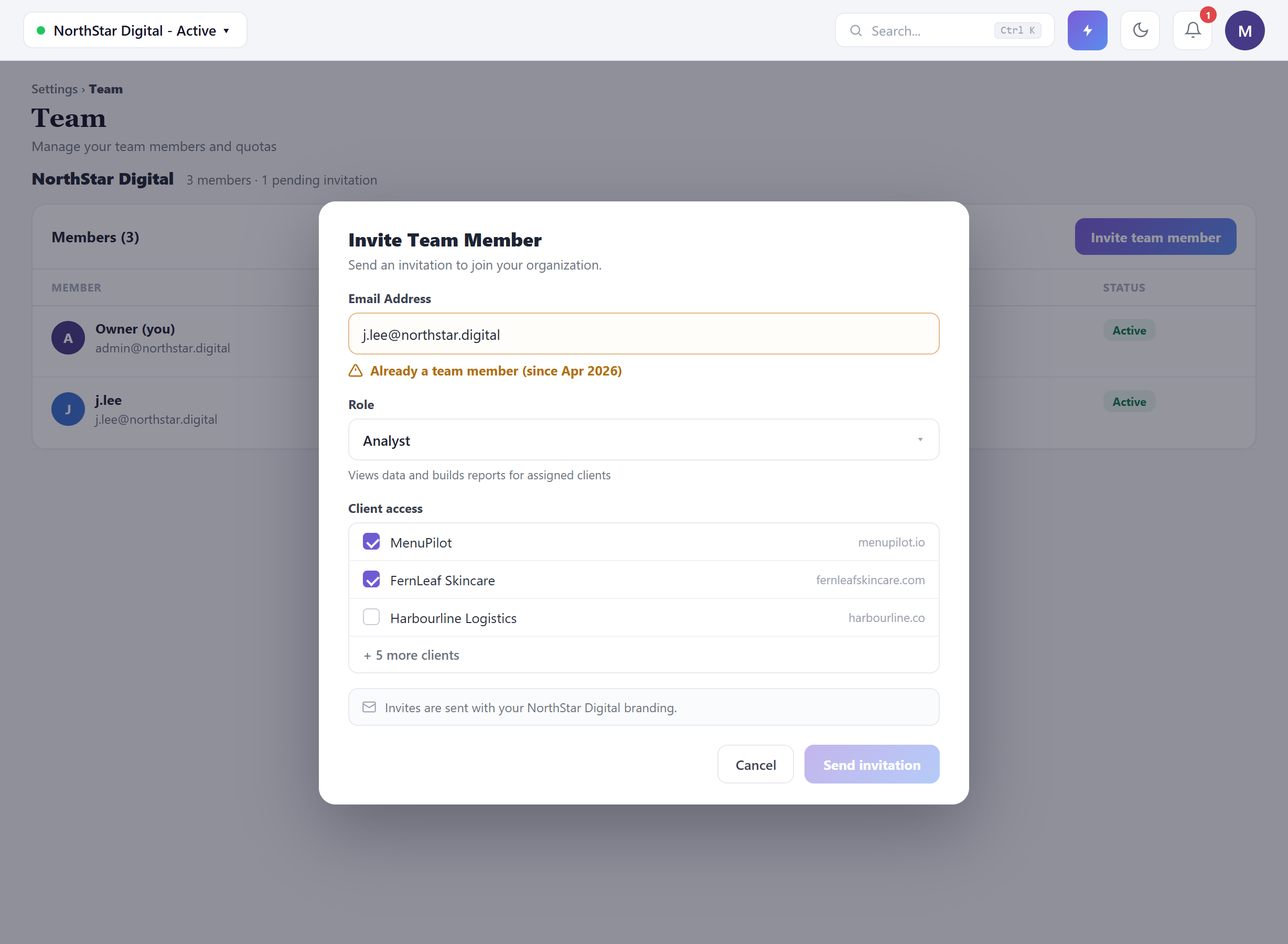 The invite flow is email → role → profiles, with the role’s plain-language description right under the picker so you’re never guessing what “Analyst” grants. The Assign Brand Profiles checklist lists your actual profiles, each shown with its URL underneath; tick exactly the ones this person should see. The modal keeps the Send Invitation button in view the whole time, so a long profile list never scrolls it off-screen and leaves you hunting for how to finish.
Every invite gives you a clear outcome — no silent no-ops. Enter an address that’s already on the team and the form tells you so (“Already a team member — since Apr 2026”) instead of firing a duplicate invitation. And if you don’t tick any profiles, the modal doesn’t silently proceed either: it shows “No profiles selected. The invited user will create their own profile during onboarding.”
White Label
Section titled “White Label”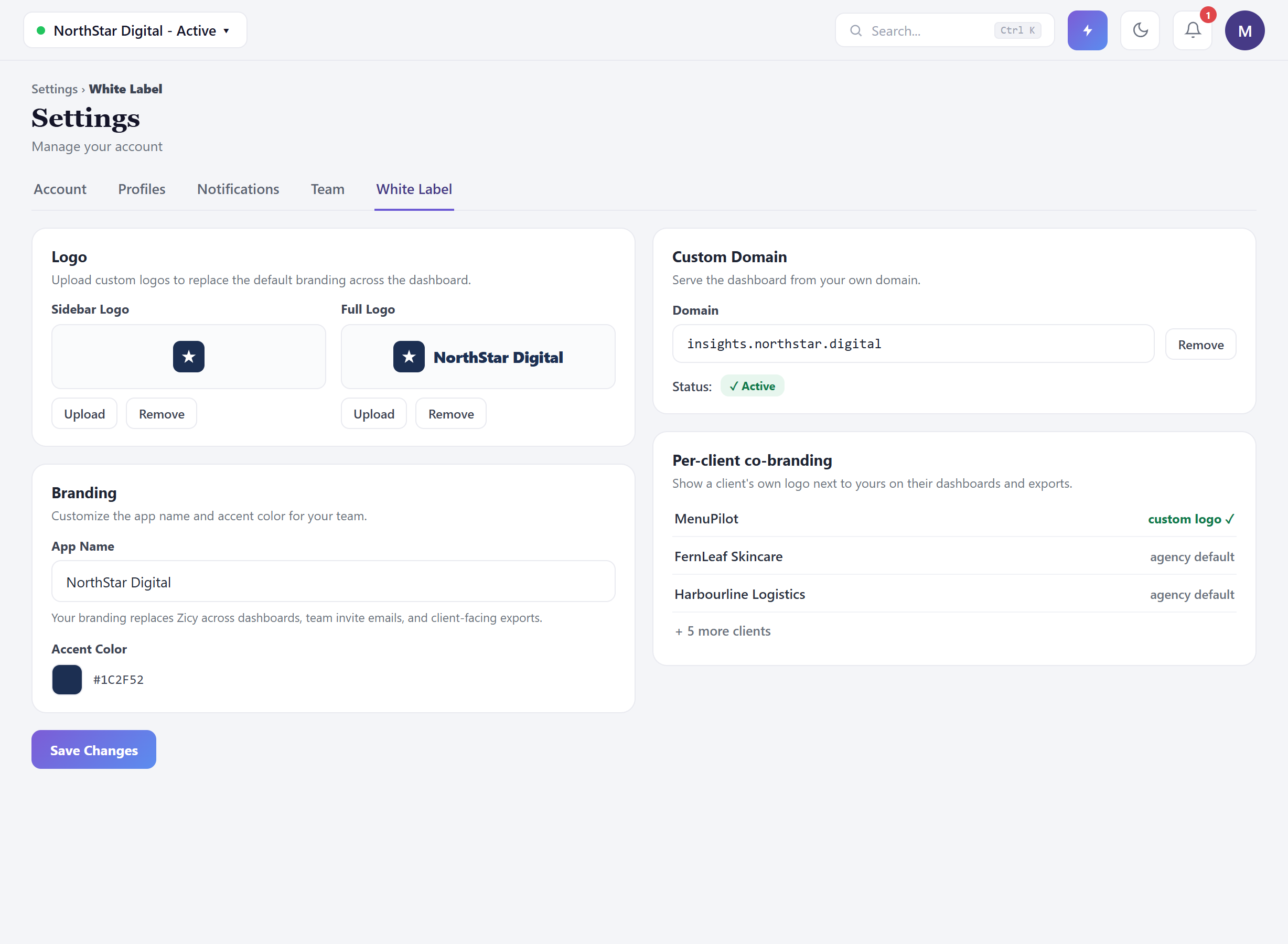 White Label is part of Zicy’s agency tiers rather than something surfaced to every account — if your plan doesn’t include it, this screen won’t appear, and that’s expected rather than something missing. Where it is available, it’s one screen with four levers:
- Logos — sidebar mark and full logo, replacing default branding across the dashboard.
- Branding — your app name and accent color. This is the setting that replaces the vendor’s name across dashboards, team invite emails, and client-facing exports.
- Custom Domain — serve the dashboard from your own address (insights.yourbrand.com), so the address bar tells the same story as the report header. Status shows Active once it’s live.
- Per-client co-branding — show a client’s own logo next to yours on their dashboards and exports, per client. One client can have a custom logo while the rest run your agency default.
This is also the screen every export quietly depends on: the branding block you confirm in Exporting Client Reports before each render is reporting what you configured here.
Configure this before the first client ever sees a screen — not after. Rebranding mid-engagement means a client noticing the change, and the question that follows (“what tool is this really?”) is one you never need to invite. Set it once, send yourself a test export, and let every artifact after that be consistent.
Common questions
Section titled “Common questions”What does client scoping actually control? Owners and unrestricted roles see everything; scoped members see their assigned clients only, across dashboards and exports alike.
What does a Pending invite mean, and what if it stalls? Sent but not yet accepted. Check the address, resend, and remember the email arrives under your brand — tell new teammates what sender name to look for.
I invited someone who’s already on the team — did it send twice? No. The form recognises an existing member and tells you inline instead of sending a second invitation, so you won’t accidentally double-invite anyone.
Do I have White Label on my plan? It’s an agency-tier capability. If the White Label screen doesn’t appear in Settings, it isn’t part of your current plan — the rest of Team and Settings works the same either way.
Who should be an Owner? As few people as your continuity plan allows — Owner includes billing and settings. Most of an agency runs correctly on Account Manager + Analyst with clean client scoping.
What to do next
Section titled “What to do next”- Exporting Client Reports — the surface this configuration exists for; the branding block there confirms what you set here.
- Getting Started: Adding a Client — the onboarding flow this module’s scoping and co-branding should be part of, day one.
- Visibility Gaps — what your newly-invited analyst should be working from, per client.